 PaletteFinch
For a layout that needs matching artwork
Website color palette
from a screenshot
Choose a saved screenshot, get its main HEX colors, then copy CSS or use a few swatches for an illustration. This tool reads image pixels on your device. It does not visit a URL or inspect a website’s stylesheet.
Preparing your local screenshot tool…
Crop a website screenshot for palette extraction
Use your device’s screenshot editor before choosing the file here. Keep the background, heading and accents that belong to the layout. Leave out the browser frame, cookie banners and unrelated photos. A full page with a large product photo will mostly return that photo’s colors.
01
Save a focused website screenshot
Capture a website you are allowed to use and crop it in your image editor. Save a JPG, PNG or WebP. The tool accepts one file at a time, up to 40 MB.
02
Find small screenshot accents
The largest sampled color comes first. If a small button or heading color is missing, use the point picker in the preview. Anti-aliased text and gradients can create nearby shades.
03
Choose illustration foreground and background colors
For an illustration, select one background and one to four foreground colors. Open the illustration tool and add a brief. For a layout, copy HEX or CSS directly and assign your own color roles.
One image, a palette, a new illustration
From screenshot colors to a fern illustration
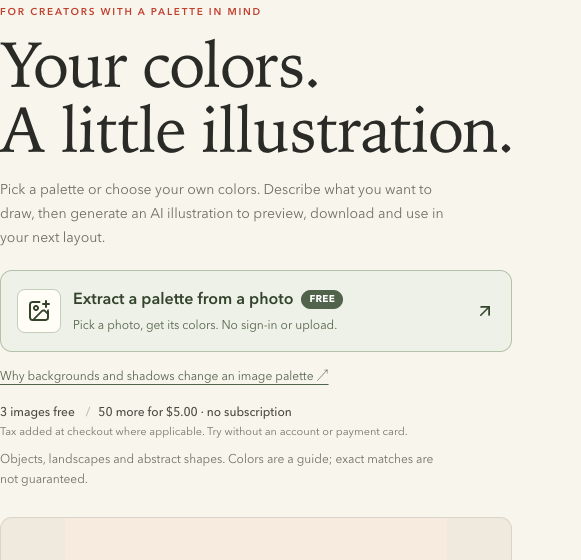
We chose a cropped screenshot of the PaletteFinch homepage, extracted its colors in this tool, then used three foreground swatches and the cream background to generate the fern below.
01 / CHOSEN IMAGE
02 / EXTRACTED HEX
#F6F3EB
#DDDCD2
#C1BEB5
#33342F
#96938A
#5F6359
Background #F6F3EB. Foreground #C1BEB5, #33342F, #5F6359. The other swatches were left out of this illustration.
03 / GENERATED RESULT

Read the exact illustration brief
A small fern in a rounded ceramic vase beside two smooth river stones, a quiet botanical still life, restrained editorial shapes, gently uneven edges. No text, no people, no logos or brand marks.
Choose screenshot colors for backgrounds and accents
In this screenshot, the pale surface occupies 86.6% of the sampled colors. We kept #F6F3EB as the illustration background, chose the dark ink and moss gray for the fern, and kept a warmer gray for the vase and stones. Selecting every swatch would give the model less direction.
Copy CSS exports numbered variables. Rename a chosen swatch to suit its role in your own stylesheet, such as a surface or accent. Check text contrast against the actual background before using it. Screenshot colors do not establish accessibility.
Screenshot palette questions
Will the HEX codes match the website’s original CSS?
A screenshot records the rendered appearance. Transparency, gradients, text smoothing and browser color management can change a pixel’s color. Automatic swatches group nearby shades, while the point picker samples a decoded pixel. Use the website’s stylesheet or design tokens when you need the original declared value.
Why does a white or cream swatch come first?
The automatic order follows each group’s share of the sampled image. Large page surfaces often dominate. Crop to the section you need before choosing the file, then pick a small accent manually if it is missing.
Can I paste a website URL instead?
This page accepts a saved screenshot. It does not fetch website URLs, inspect CSS or automatically crop an image. Our Chrome extension can also extract from a webpage image that you invoke it on, subject to browser and image access limits.
Does extraction upload the screenshot or use credits?
The chosen file is processed locally. Extracting, point picking and copying colors are free and require no account. A new illustration is a separate action that uses one credit. Only the chosen HEX colors travel to the illustration tool; the screenshot is not a model reference.
For a photo or other saved image, use the image palette tool. To draw a new subject with your selected colors, continue to the palette illustration tool. Copying colors is free; illustration generation uses existing credits.