 PaletteFinch
Image palette field notes
Why backgrounds and shadows change your image palette
By PaletteFinch ·
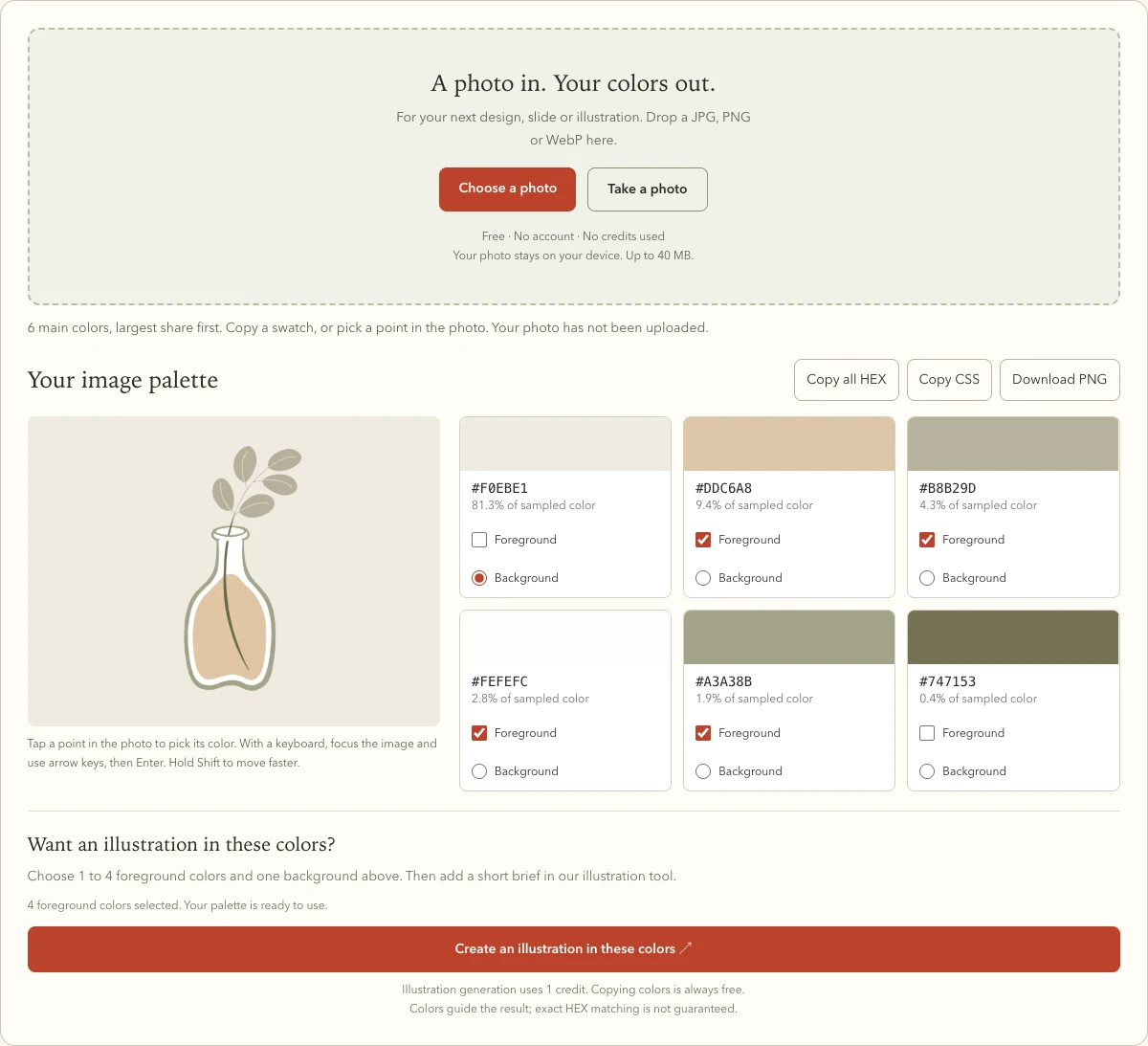
Our bottle illustration has a dark stem, pale leaves and a large cream background. When we put it into the color extractor, cream came first, with 81.3% of the sampled color. The dark stem was easy to see, but its automatic color group occupied just 0.4%.
That palette describes the space colors occupy in this image. To use it in a new layout, we still need to choose which colors matter.

1. Extract colors from the whole image
Open the free image palette extractor, choose the downloaded WebP, and wait for the swatches. No account or credits are needed. The file stays in your browser.
Our browser test returned the six groups below. Each HEX is a representative color of a group, and each percentage is its share of the reduced sample. The percentages are rounded; they do not count every exact HEX pixel in the original.
| Color | Sampled share |
|---|---|
| #F0EBE1 | 81.3% |
| #DDC6A8 | 9.4% |
| #B8B29D | 4.3% |
| #FEFEFC | 2.8% |
| #A3A38B | 1.9% |
| #747153 | 0.4% |
2. Separate the image background color
Keep #F0EBE1 selected as Background if you want a similar surface behind your next illustration. Its 81.3% share does not mean your next design needs to be 81.3% cream. For this example, we unchecked the near-white #FEFEFC foreground to make room for a darker accent.
A photo with a large wall or sky can produce the same kind of result. If that area is irrelevant to your palette, crop a copy of your image before choosing it. This tool does not crop images itself. A crop changes the sampled area, so the shares can change too.
3. Pick a small image detail by hand
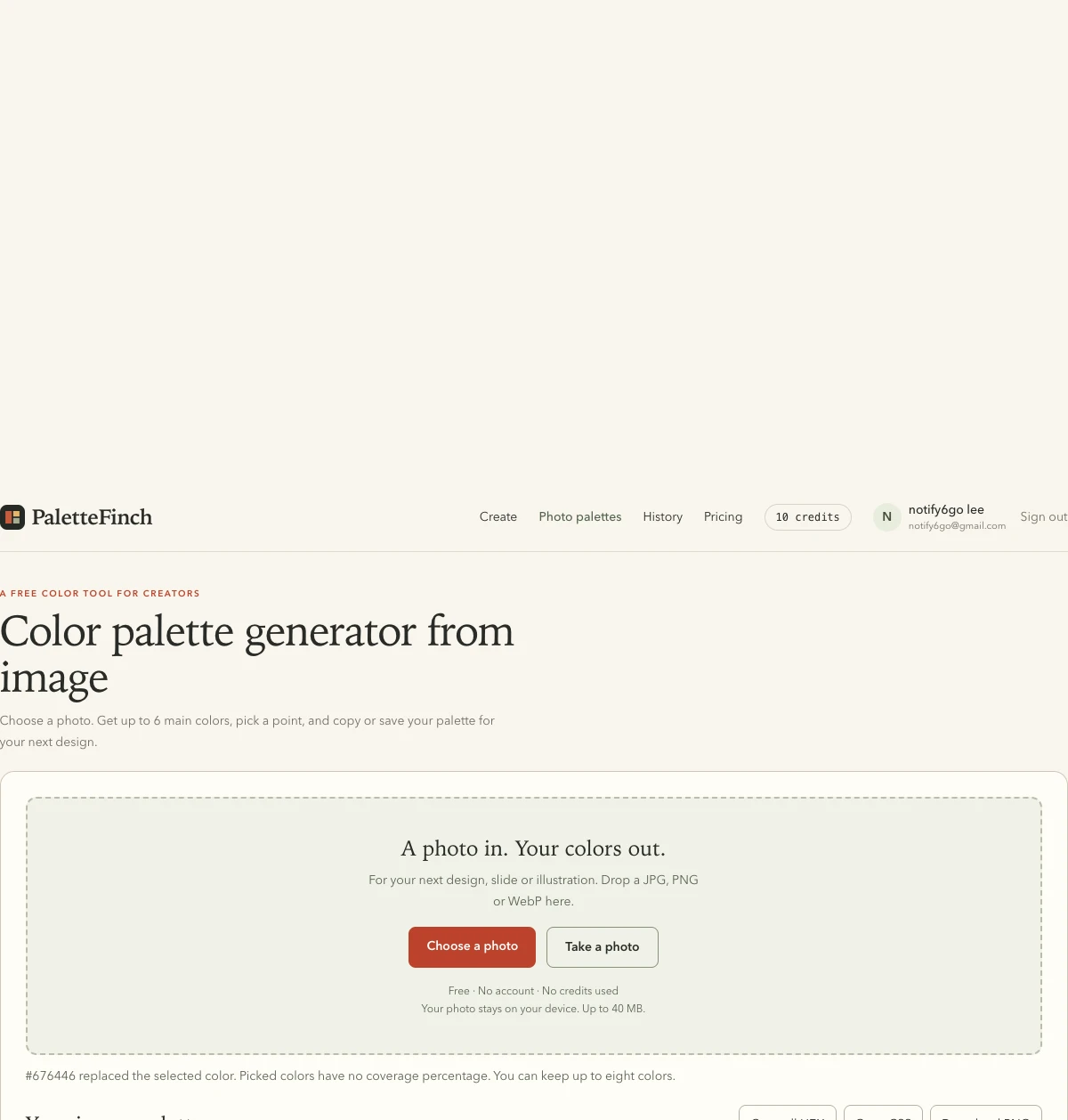
Click the dark stem inside the bottle. In our test, pixel 421, 702 returned #676446. Under Use picked color, choose Replace color 6, then press Apply picked color. Select the new swatch as a foreground color.
The picked HEX differs from the automatic #747153 because the picker reads one point in the browser-decoded original. The automatic swatch represents a group from the smaller sample. The new swatch is marked Picked; it has no sampled-share percentage.
What about shadows and extra shades?
Automatic extraction groups visible RGB colors. It does not identify a wall, a leaf or a shadow by meaning. In a photograph, a lit area and a shaded area of the same object can enter different groups. Texture and edge pixels can add nearby shades.
This flat illustration does not test shadow removal. For a photograph, choose the point that matches the part you care about, then check how the palette looks in your intended layout. A screen HEX is not a calibrated print color.
Export image colors or use them for a new illustration
Use Copy all HEX, Copy CSS or Download PNG to keep the current swatches. You can also send up to four foreground colors and one background to the illustration tool. Generating an illustration uses one credit. Only your selected colors and brief go to generation; the source image is not a model reference. Colors guide the result, and exact matches are not guaranteed.
Try the image palette extractor ↗